> For the complete documentation index, see [llms.txt](https://docs.multitudes.com/llms.txt). Markdown versions of documentation pages are available by appending `.md` to page URLs; this page is available as [Markdown](https://docs.multitudes.com/knowledge-base/types-of-notifications/pr-updates.md).
# PR Updates
Get ad hoc notifications when a review is requested from a team and/or individual.
Stay on top of pull request activity without leaving Slack. Multitudes notifies your team at every stage of the PR lifecycle – from review requests and changes requested to approvals and merges.
## How it works
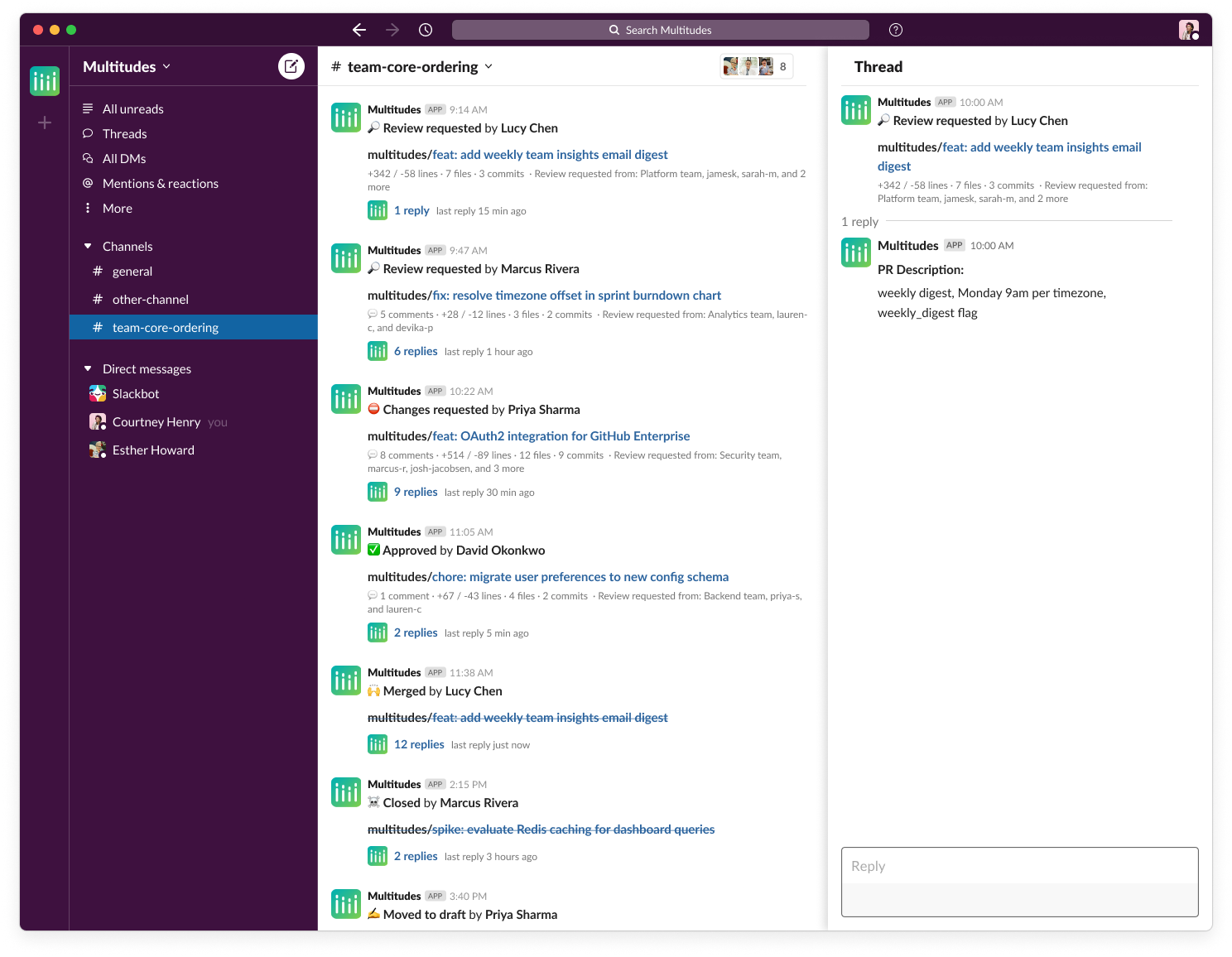
When a review is requested on a PR, Multitudes sends a notification to the relevant Slack channel and/or DM (depending on your configuration). As the PR progresses, the topline message updates, with each action on the PR being shown in the message thread.
Here's how PR updates compare to GitHub's Slack integration:
* **Less noisy thanks to thoughtful threading**: The topline message in the Slack thread updates to always show the latest PR status, with previous events showing in the thread. This keeps the Slack channel clean, and only notifies you for events that need your attention (like review requests).
* **Shows PR information, so you can estimate effort:** PR updates includes more information about the PR (like the size and PR description), so you can get a quick idea of how much effort it might take you to review.
* **More configurable:** Every person and team has different preferences about what they want to be notified by. PR updates can be configured at the team and individual level, with per-event toggles for each person (review requested, approved, changes requested, comments, mentions, merges), so people only get notified about what's actually relevant to them.
## Who it's for
Turn on PR updates if you want to keep PRs flowing smoothly – this can help reduce waiting time and, overall, your [Change Lead Time](/metrics-and-definitions/process-metrics/flow-of-work/change-lead-time.md). These notifications give teams a place where they can easily see the status of all the PRs their team is working on, and the same for individuals who want to know where their individual work is at.
PR updates work at two levels, and most teams use both together:
* [Team PR updates](#team-pr-updates): Ad hoc notifications when a review is requested from the team.
* [Personal PR updates](#personal-pr-updates): Ad hoc notifications for changes to a PR that an individual has been involved with (based on their configuration for what they want to be notified about).
Read on below for more about each.
### Team PR updates
These ad hoc notifications are based on PR activity relevant to the team – for example, when the team or a team member is asked to review a PR. How it works:
* Each review request starts a new thread
* Configure if the team should be notified about review requests to the team and/or to any individual on the team
* The review request notification includes information about the PR, including size and the PR description, so you can determine how much effort it might take to review
* As the PR changes, updates go into the thread and the topline message changes to show the current status of the PR
* Once a PR no longer needs action (it's merged, closed, or moved to draft state), the toplevel message is crossed out.
To set these up, go to [Team PR updates setup](#for-team-pr-updates) below.
### Personal PR updates
These ad hoc notifications turn PR activity into Slack DMs to an individual. You can configure this for the types of activity you care about, such as:
* Activity on a PR you've authored – including approvals, changes, comments, or merges (from someone else)
* Activity on PRs you're involved with – including review requests, @-mentions, or merges
Similar to the Team PR updates (see above), each new PR with activity starts a new topline message, additional activity goes into the topline message and gets posted into the thread, and PRs that don't need any further activity are crossed out.
To set these up, go to [Personal PR updates setup](#for-personal-pr-updates) below.
## How to set up PR updates
### For Team PR updates
**Shortcut to the PR updates configuration from the** [**My Insights page**](https://app.multitudes.co/)**:**
In the "Trend summary" section, look for the Flow of Work card > "Take action" (see screenshot). If you click the bell in that section, it will show a tooltip; if you click that, it will take you to the relevant part of the Settings page. If the bell is empty, it means this notification is not configured. If the bell is filled-in, the notification is active – and the tooltip will show you how it's configured.
**To configure:**
Set up Team notifications to get notified about review requests to a team. These notifications will be sent to the Slack channel that you specify.
1. Go to [**Settings > Notifications > Team**](https://app.multitudes.co/team-settings/notifications?section=team).
1. If you see a button with "Connect your Slack organization", then you'll need to get a Slack admin to install Slack with the instructions here: [**Integrations > Slack**](/integrations/slack.md)
2. If you see a table with team names (like the below), then that means Slack is installed for your organization and you can proceed.
2. You will see all your teams listed with a column on the right for specifying the slack channel where you want to receive PR Update notifications.
1. Click on the Edit icon on the right for the team that you want to receive notifications for.
2. Under **Team PR updates**, toggle **Send via Slack** to **ON.**
3. Search for and select the Slack channel where you want to receive the notifications.
1. If you want to send Slack notifications to a private channel, you'll need to first add the `Multitudes for Slack` app to that channel by typing `@multitudes` + Enter into the channel – or by clicking on the private channel's name and going to `Integrations > Add apps`.
4. Under "**Include**", choose what types of activity you want to get notifications for.
1. Note that if you have GitHub Team sync on, you can choose to be notified about review requests to "this GitHub team" and/or review requests to "any member of this team". You must select at least one of these so that we have review requests to notify you about.
2. If you don't use GitHub team sync, then we must do review requests based on whether any member of the team is asked to review – otherwise, we wouldn't have any review requests to notify about.
5. Click **Save**.
### For Personal PR updates
You can set up personal notifications to get notified about PRs that you author or are involved with.
1. Go to [**Settings > Notifications > Personal**](https://app.multitudes.co/team-settings/notifications?section=personal).
1. If you see a button with "Connect your Slack DMs", then you'll need to install Slack for your individual account following the instructions here: [**Integrations > Slack**](/integrations/slack.md)
2. If you see a page with Slack notification options (like the below), then that means Slack is installed for you and you can proceed.
2. Go to the **PR updates** section (at the top of the page).
1. Toggle **Send via Slack** to **ON**.
2. Tick the activities that you want to get notified about for PRs you authored as well as PRs you're involved with.
3. Click **Save.**