> For the complete documentation index, see [llms.txt](https://docs.multitudes.com/llms.txt). Markdown versions of documentation pages are available by appending `.md` to page URLs; this page is available as [Markdown](https://docs.multitudes.com/configuration-and-setup/api-keys.md).

# API Keys

## Types of keys

API keys come in 2 types: Personal API keys and Organization API keys.&#x20;

#### Personal API keys

These keys are used when sending [OTel metrics](/integrations/open-telemetry.md) from tools like Claude Code to the Multitudes OTel collector. They are personal to each engineer, so they pose less risk if compromised.&#x20;

#### Organization API keys

These keys are for performing activities on behalf of an organization, including: posting deployment metrics to the Deployments API, querying the Multitudes API, or sending OTel data from a central collector to Multitudes (rather than directly from an engineer's machine).&#x20;

## Permissions needed to generate a key

<table><thead><tr><th width="131.53125">Key type</th><th width="163.33984375">Scopes</th><th>Purpose</th><th>Permissions to generate</th></tr></thead><tbody><tr><td>Personal </td><td>Open Telemetry: write</td><td>Sending raw OTel data from an individual's machine direct to Multitudes</td><td>Members, Managers, and Owners</td></tr><tr><td>Organization</td><td>Open Telemetry: write</td><td>Sending aggregated OTel data from multiple engineers machines to Multitudes via a centralized collector </td><td>Managers and Owners</td></tr><tr><td>Organization</td><td>Deployments: write</td><td>Sending deployments to the Deployments API</td><td>Managers and Owners</td></tr><tr><td>Organization</td><td>Data: read</td><td>Querying the Multitudes API </td><td>Members, Managers, and Owners</td></tr></tbody></table>

## Generating an API Key

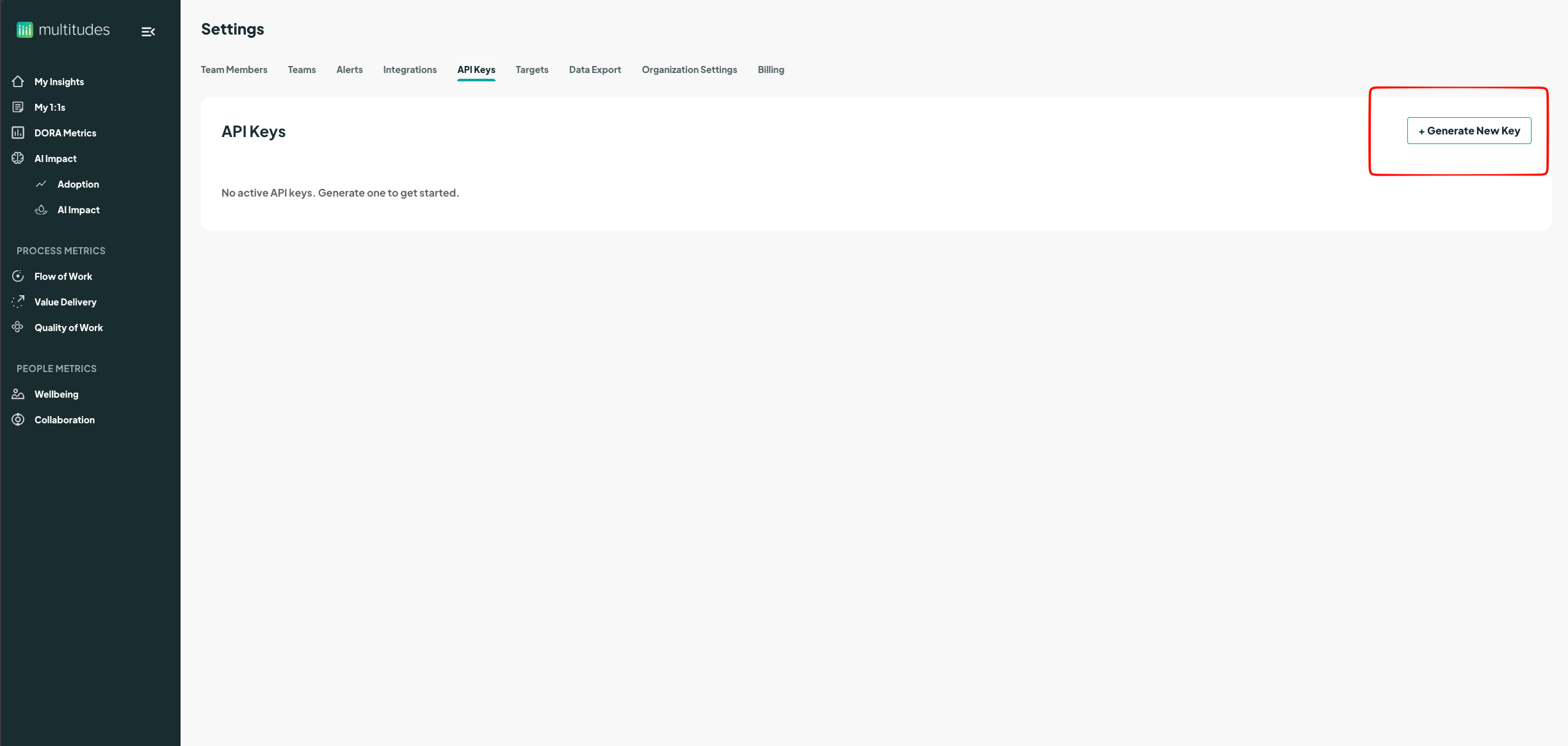
1. From the [Settings > API Keys](https://app.multitudes.co/team-settings/api-keys) page, click "+ Generate New Key" on the top right corner of the page. This will pop-up a modal.

<figure><img src="/files/HMAwQXqhovQxUwWcfI4M" alt=""><figcaption></figcaption></figure>

2. In the modal, select your key type. Choose a Personal or Organization key based on your usecase.&#x20;
3. Select the appropriate scopes for your use case. Scopes can be set to no access, read, or write
4. Click "Create key".

<figure><img src="/files/ymZ8XLNETsxtAOVlftoJ" alt=""><figcaption></figcaption></figure>

4. After the key has been generated, copy it for use. The full key will only be shown once.&#x20;

<figure><img src="/files/ZwndVvoUP7LAy3LcBQpL" alt=""><figcaption></figcaption></figure>
